How to receive notifications
Web Method
- Visit https://ntfy.pokemmotools.org/alphapings and/or https://ntfy.pokemmotools.org/swarmpings
- Allow notifications when your browser prompts you (left menu)
- Keep the browser tab open, or close it. Notifications will still be received.
iOS App
- Install ntfy from the App Store
- Open the app and grant notification permissions
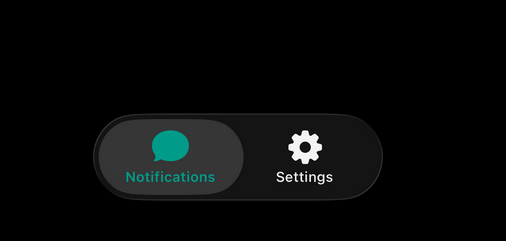
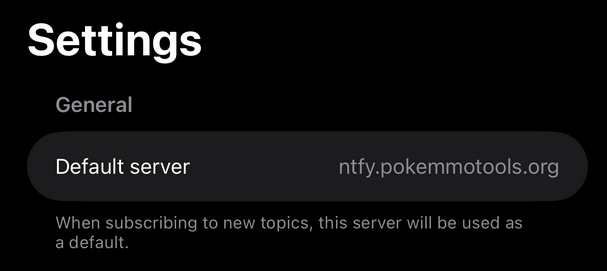
- Tap the Settings tab at the bottom
- As Default server use
https://ntfy.pokemmotools.org - Go back to the notifications tab
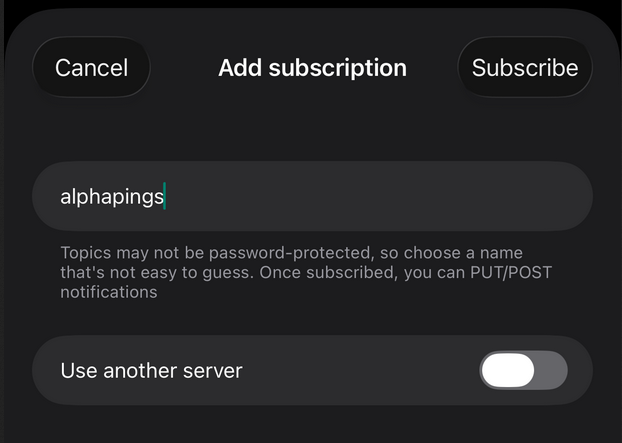
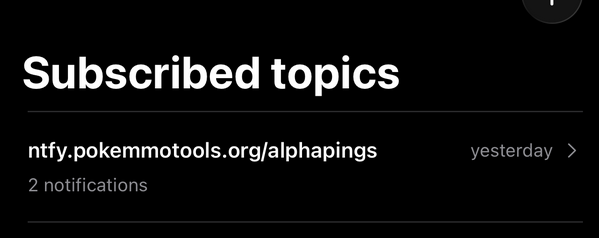
- Tap the + Add Subscription button
- Subscribe to topic
alphapingsorswarmpingsand let the Use another server toggle be off. The topics are lowercase. - Tap the Subscribe button
- And done!
Android App
- Install ntfy from Google Play
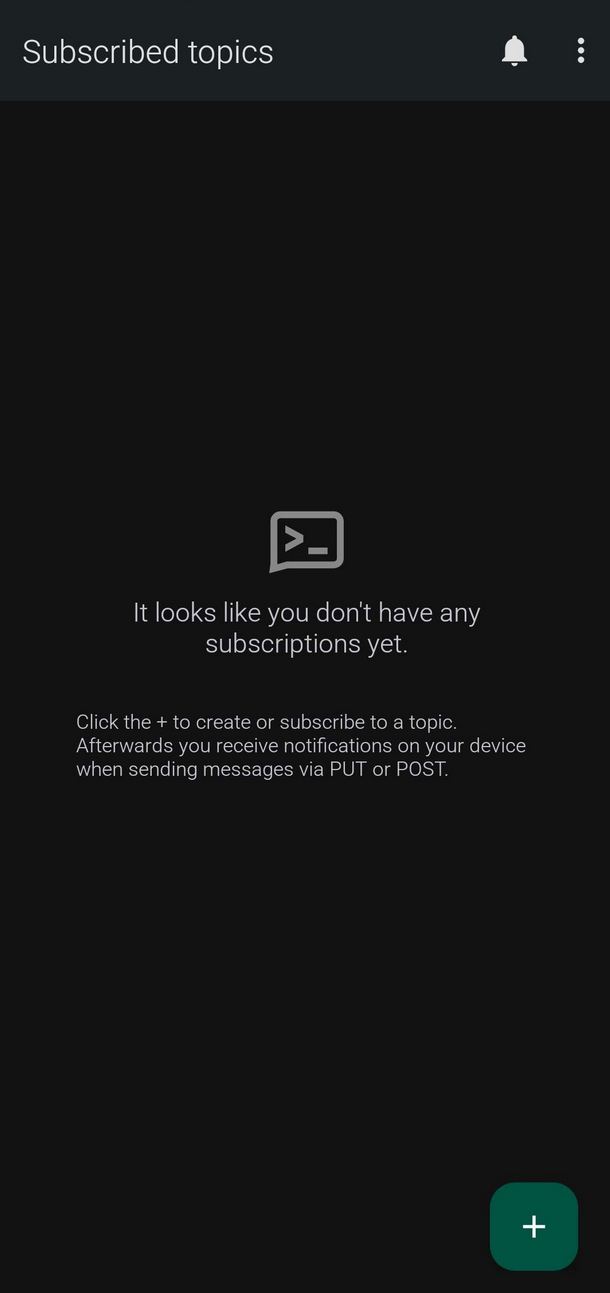
- Open the app and grant notification permissions (disable the battery optimization if prompted).
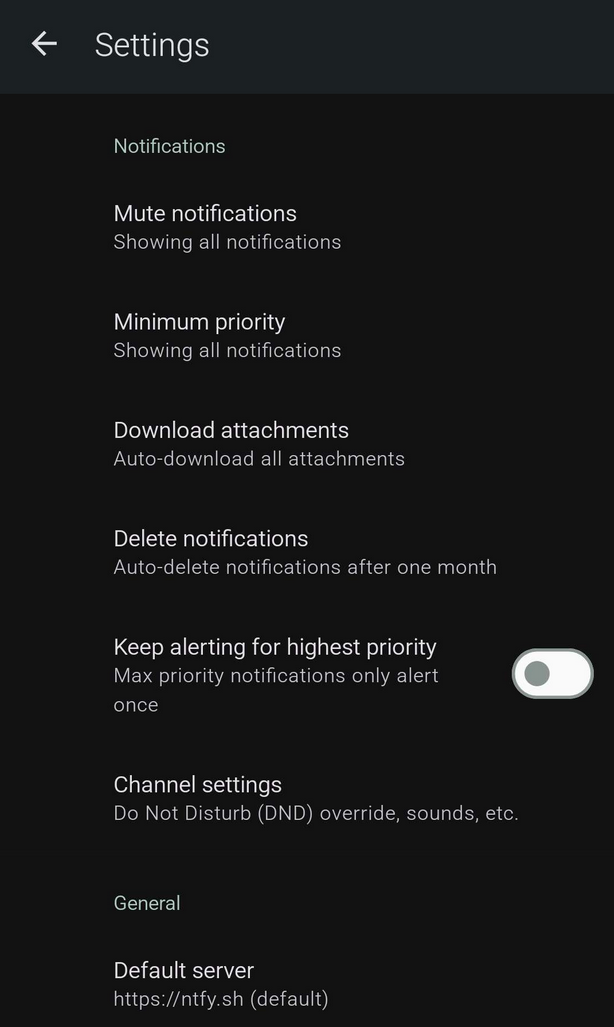
- Tap the 3 dots tab at the top
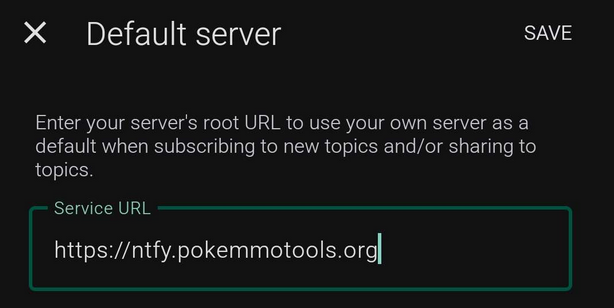
- Tap Default server
- As Default server use
https://ntfy.pokemmotools.org - Go back to the main menu
- Tap the green + button in the bottom right corner
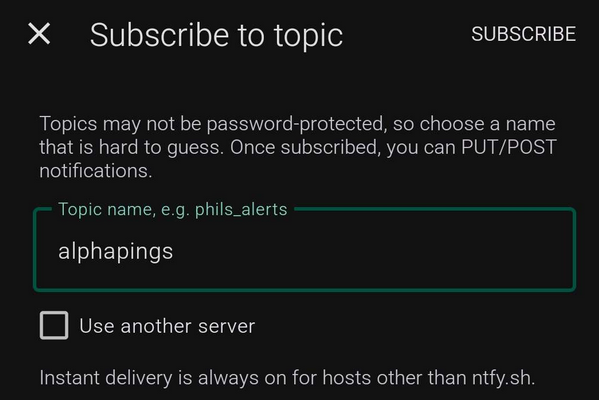
- Subscribe to topic
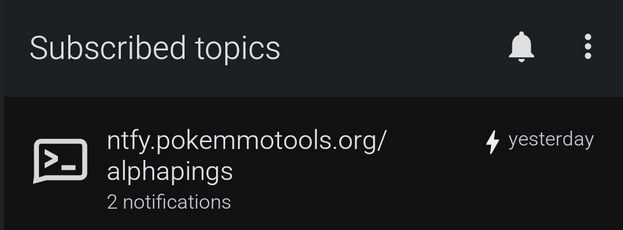
alphapingsorswarmpingsand let the Use another server toggle be off. The topics are lowercase. - Tap the Subscribe button
- And done!
If Android aggressively kills notifications, check dontkillmyapp.com.
How to publish notifications
- Open the Alpha List.
- Click the Publish Settings button in the navigation menu.
- Fill values exactly:
- Click Save
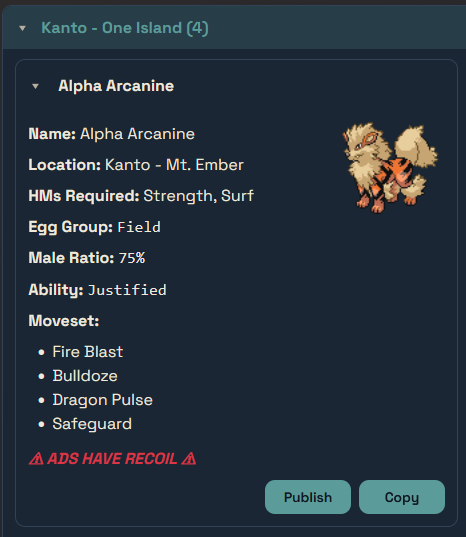
- Find the Alpha you want to call out.
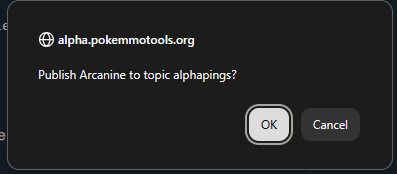
- Click Publish, and ok.
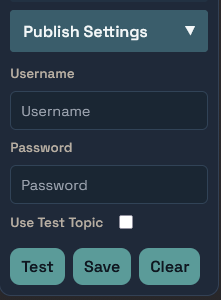
username you used during signup
password you received
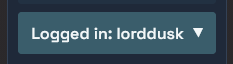
Want to help with publishing? Find out here how you can sign up.
- Open the Swarm List.
- Optional:
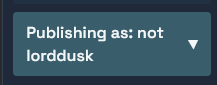
- Click the Publish Settings button in the navigation menu.
- Fill in any username you want for publication, if no
username is found it will be
posted as Anonymous
Leave the password field empty. - Click Save
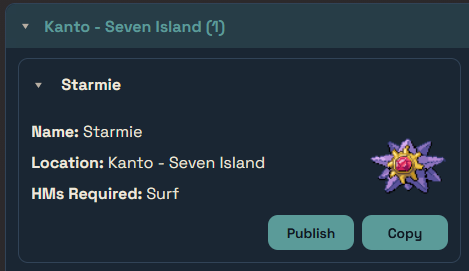
- Find the Swarm you want to call out.
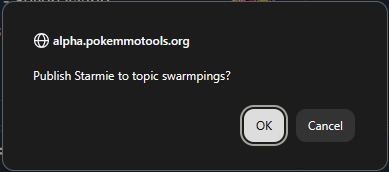
- Click Publish, and ok.
- (Optional) After publishing at least 25 Swarms, you can signup to become a verified publisher! Verified publishers can also publish Alphas!
username you want
Leave this empty

- Open the Pheno List.
- Find the pheno you found in game
- Browse the maps if there are multiple available
- Click copy with current map and post where ever you want
to post it.
The copies are specifically tailored with Discord markdown in mind:
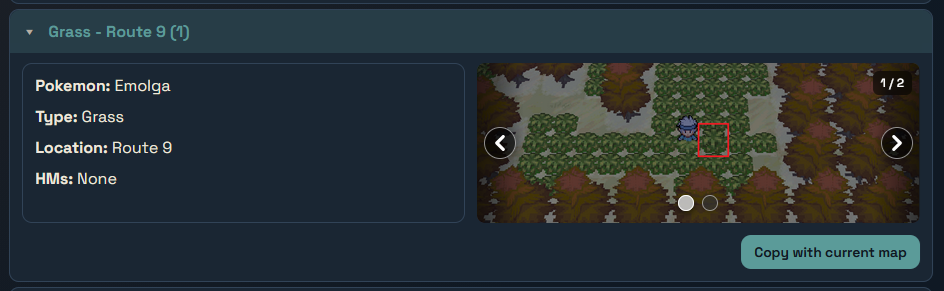
                                **Grass** Pheno - _[Route 9](https://i.imgur.com/Wh9HEB4.png)_

                                Possible Exclusive: **Emolga**

                                HMs Required: _None_

                                -# [PhenoList by FlaProGmr & Lorddusk](<http://alpha.pokemmotools.org/pheno-list>)
There currently is no plan to add ntfy push notifications or webhooks for Phenos, as they are deemed too volatile by us the developers.
How to use webhooks
Webhooks allow you to send notifications to Discord.
This does NOT work on the mobile app, only on the web and desktop versions of Discord.
- Visit the Webhooks Dashboard
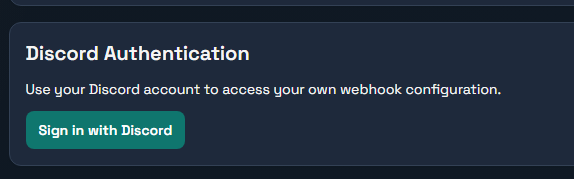
- Click the Sign in with Discord button to authenticate your Discord account
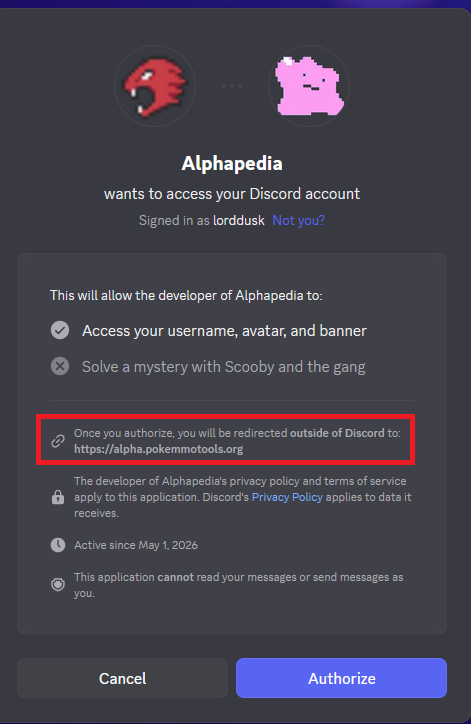
- Authorize Alphapedia to access your Discord account, always check before you authorize anything if the redirect is to the alphapedia website.
- You'll be redirected to Webhooks Dashboard. Click the New Webhook button
- Now go to your Discord server/channel where you want Alphapedia to notify you of new Alphas
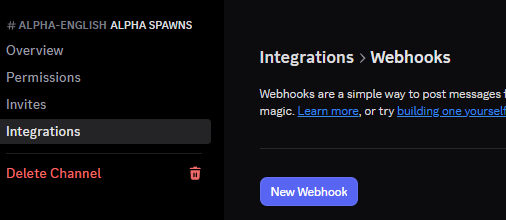
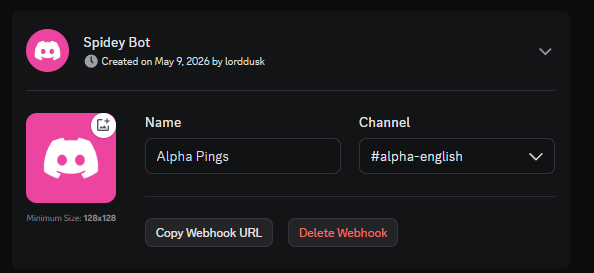
- Click the Integrations tab, and then click Webhooks. Click New Webhook
- Fill in the webhook details:
- Name: A friendly name for your webhook (e.g., "Alpha Pings")
- Channel: The Discord channel where notifications will be sent (this is prefilled with the channel you edited)
- Don't forget to click Save Changes, and click Copy Webhook URL
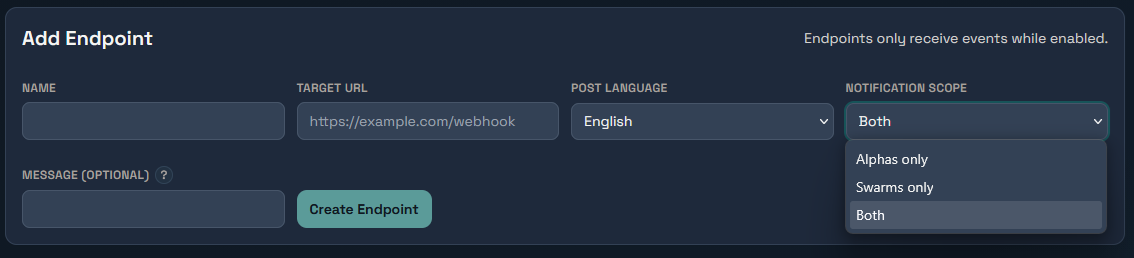
- Now fill in the inputs as seen below:
- Name: A label for this endpoint (optional, for your reference)
- Target URL: Your webhook URL (e.g., Discord webhook URL or HTTP endpoint)
- Post Language: The language for notifications sent to this endpoint
- Notification Scope: Do you want to receive notifications for Alphas, Swarms, or both?
- Message (optional): Custom message to include with notifications
- Click the Create Endpoint button
- Your endpoint is now active and will now receive notifications. You can manage or delete it at any time, also can click test to see if it works!